
Connect Your Organization
A Resemble team admin starts the connection and chooses which people to protect. A Microsoft Global Administrator or Privileged Role Administrator approves access once for the organization. If your IT admin handles approval separately, they can use a consent URL for the meeting bot without a Resemble account.
Connect Microsoft 365
Open Meetings
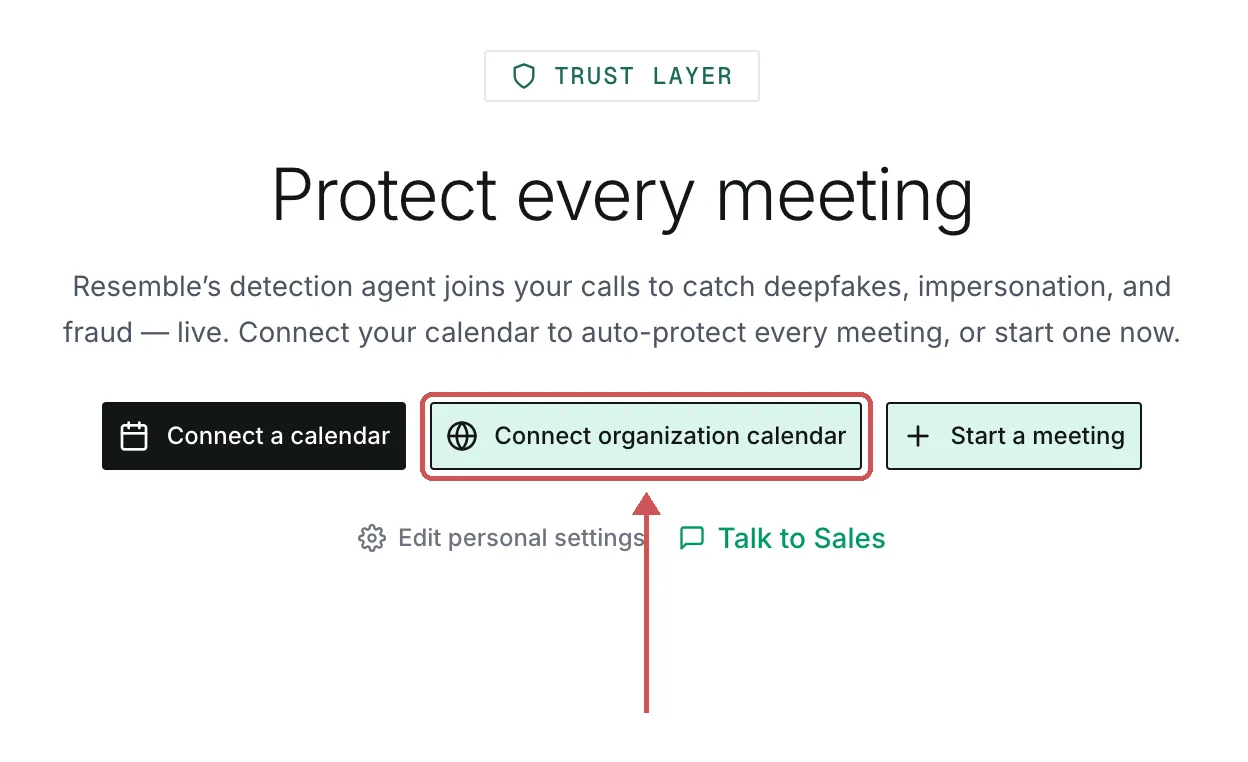
In the Resemble app, open Meetings from the sidebar. A team with no calendar or meetings yet sees Protect every meeting. As a team admin, click Connect organization calendar.
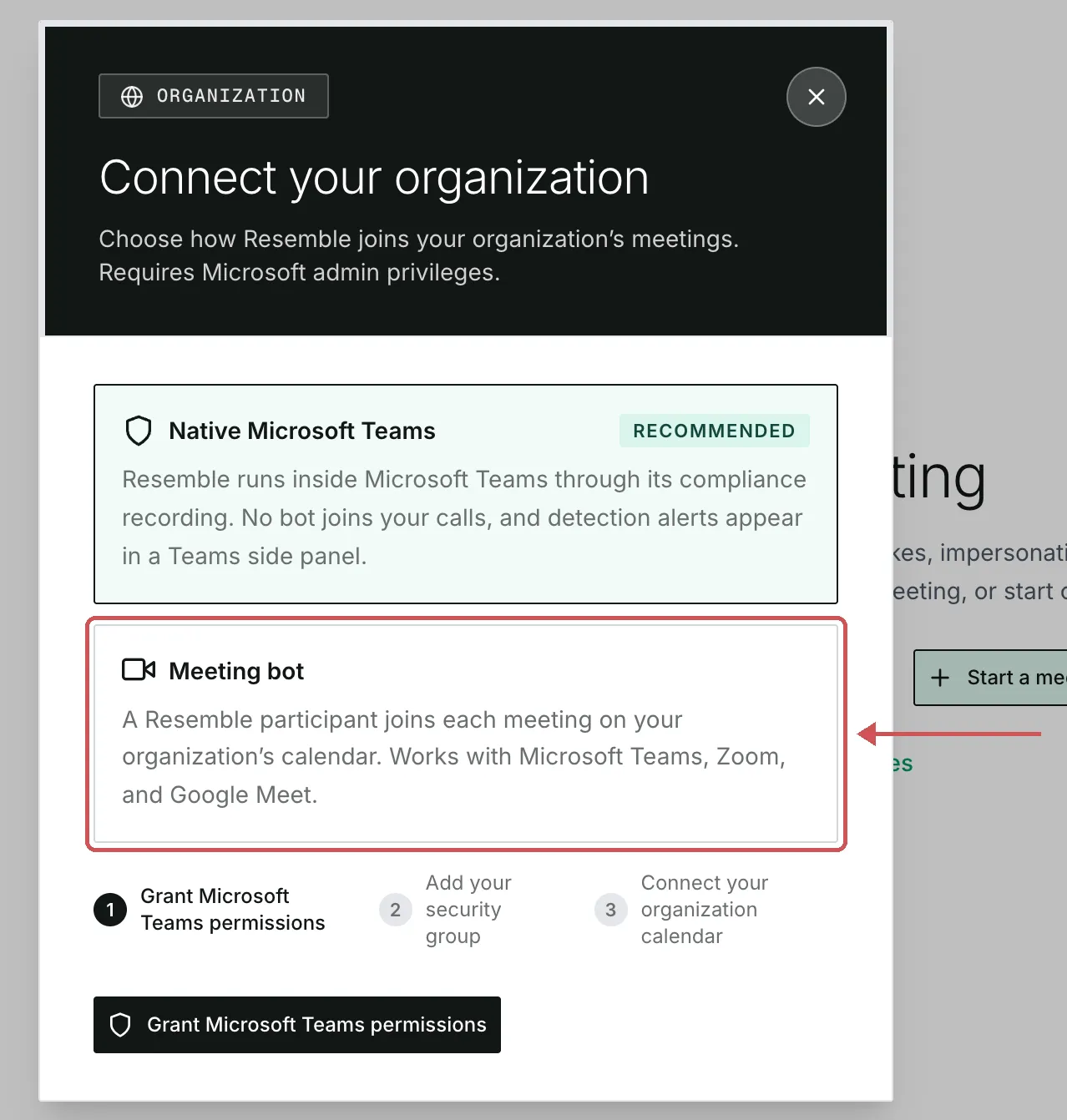
Select Meeting bot
The Connect your organization dialog opens with Native Microsoft Teams selected. Choose Meeting bot so a Resemble participant can join Microsoft Teams, Zoom, or Google Meet calls on the calendars you protect.
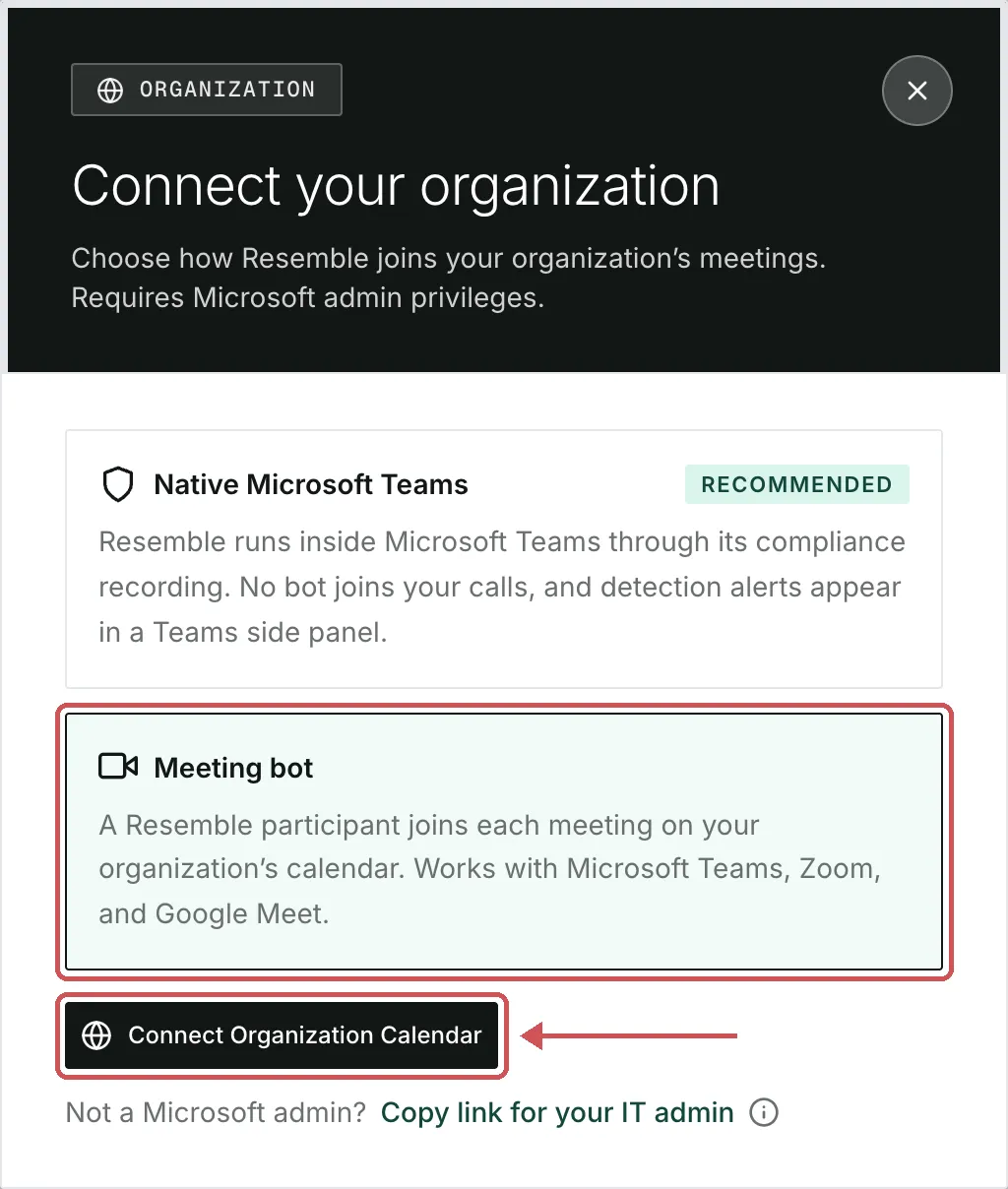
If you or a Microsoft admin with you can approve now, click Connect Organization Calendar and continue to Approve access in Microsoft. To send the request to IT, choose Copy link for your IT admin.
If your autojoin preference is Only meetings that I host, choose another option before connecting. You can select the host-only option again after setup.
Use a consent URL for the meeting bot
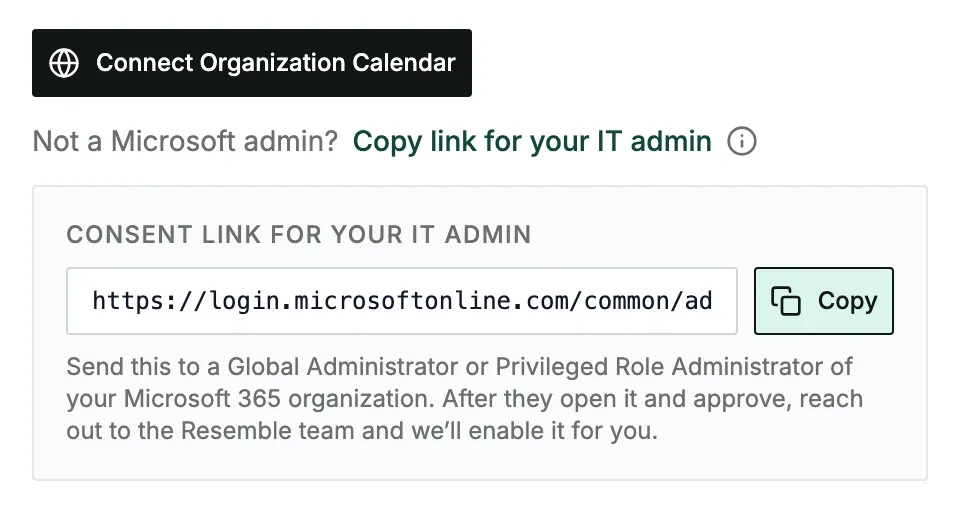
- Get the URL. As a Resemble team admin, select Meeting bot and click Copy link for your IT admin. The URL stays visible under Consent link for your IT admin, where you can copy it again. You can also request a consent URL for your Microsoft 365 tenant from Resemble Support.
- Have IT approve. Send the URL to a Global Administrator or Privileged Role Administrator. They open it, sign in to the Microsoft 365 organization you want to connect, and click Accept on the Resemble Meetings permission request. Microsoft then takes them to the Microsoft Entra admin center.
- Contact Resemble to finish connecting. After IT approves, email support@resemble.ai with your Resemble team name and the Microsoft 365 tenant ID that IT approved. Let us know you used the meeting bot consent URL. We’ll verify the approval and enable the organization calendar for your team.
Approve access in Microsoft
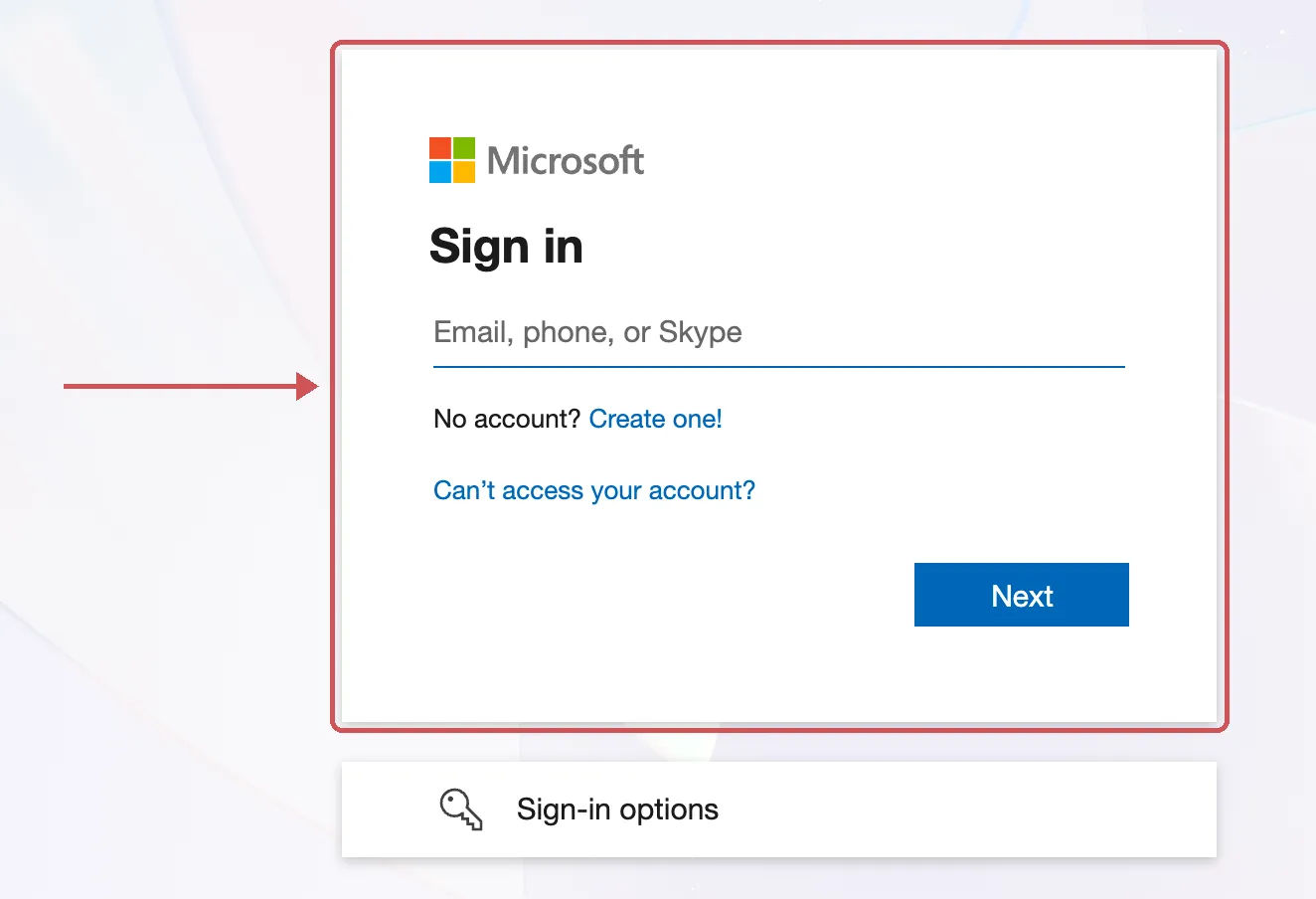
The approver signs in to Microsoft as a Global Administrator or Privileged Role Administrator. An IT admin receiving a consent link starts here.
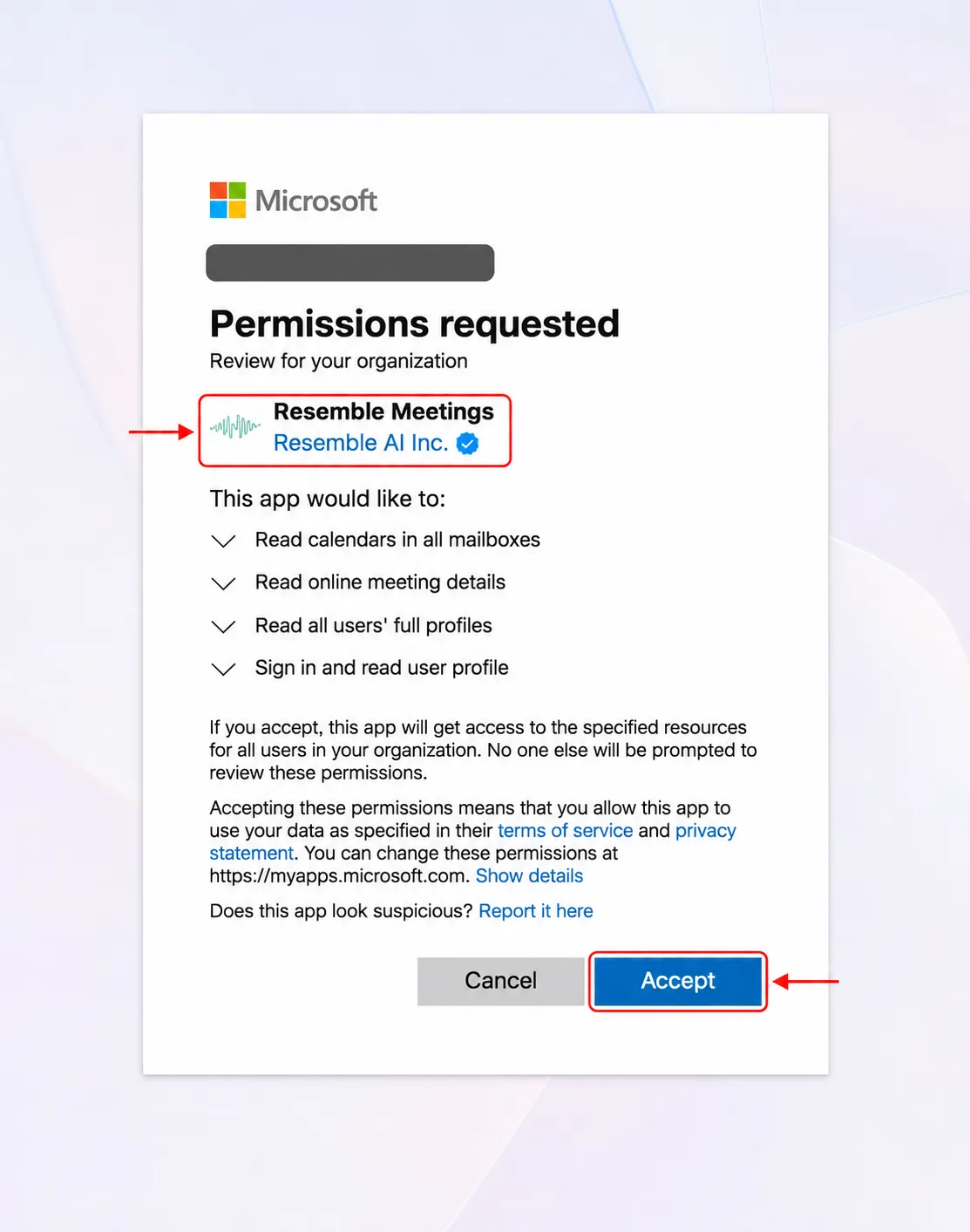
On Permissions requested, look for Resemble Meetings, published by Resemble AI Inc. The blue badge identifies Resemble as a Microsoft-verified publisher. Review the permissions and how Resemble uses the data, then click Accept to approve access for the organization.
Confirm the connection
If you used Connect Organization Calendar, Microsoft returns you to Meetings after approval. If IT used a consent URL, open Meetings once Resemble Support confirms the calendar is connected.
The Meetings page now shows Organization mode, an Edit Organization Settings button, and meeting counts of zero.
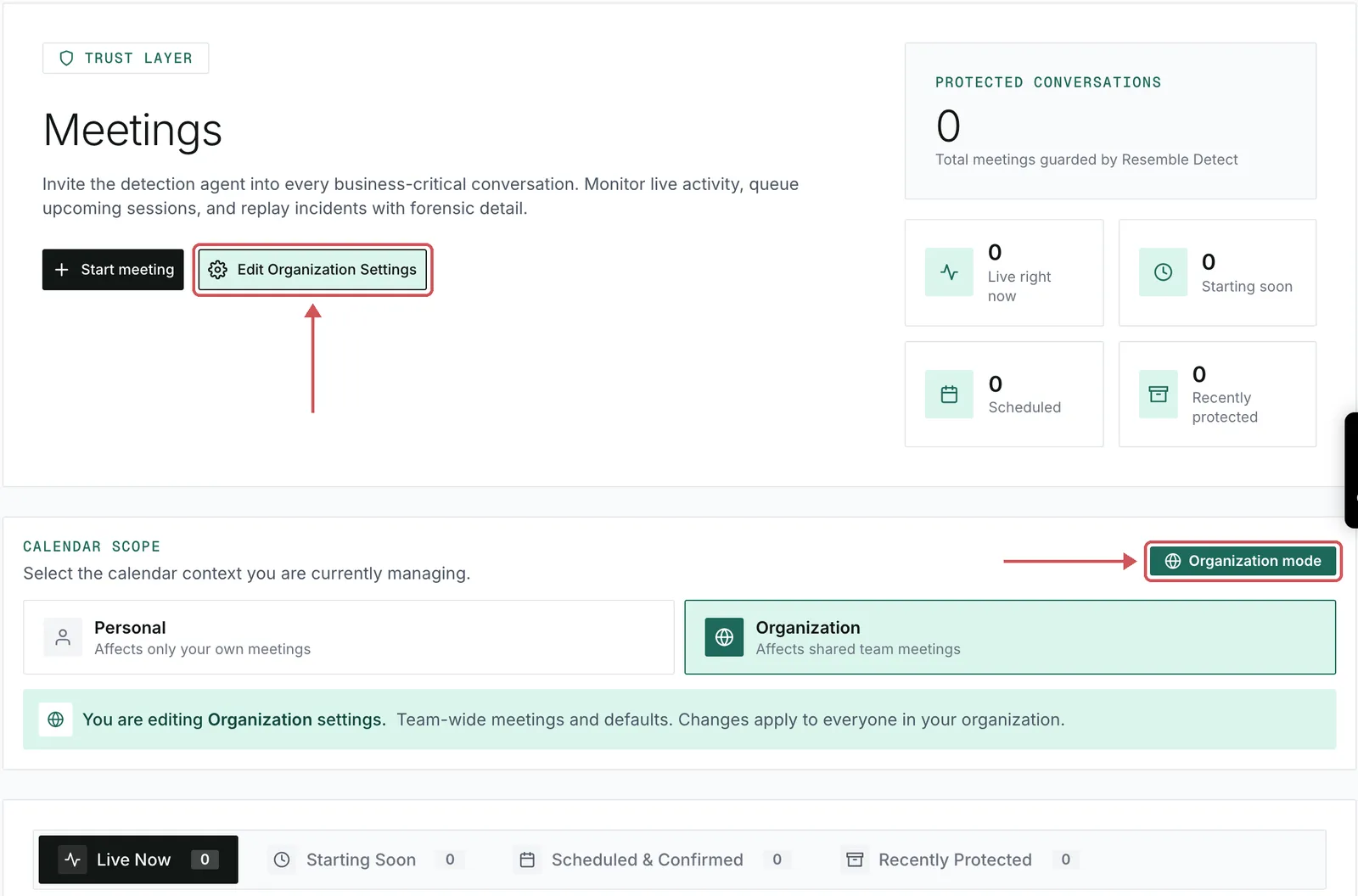
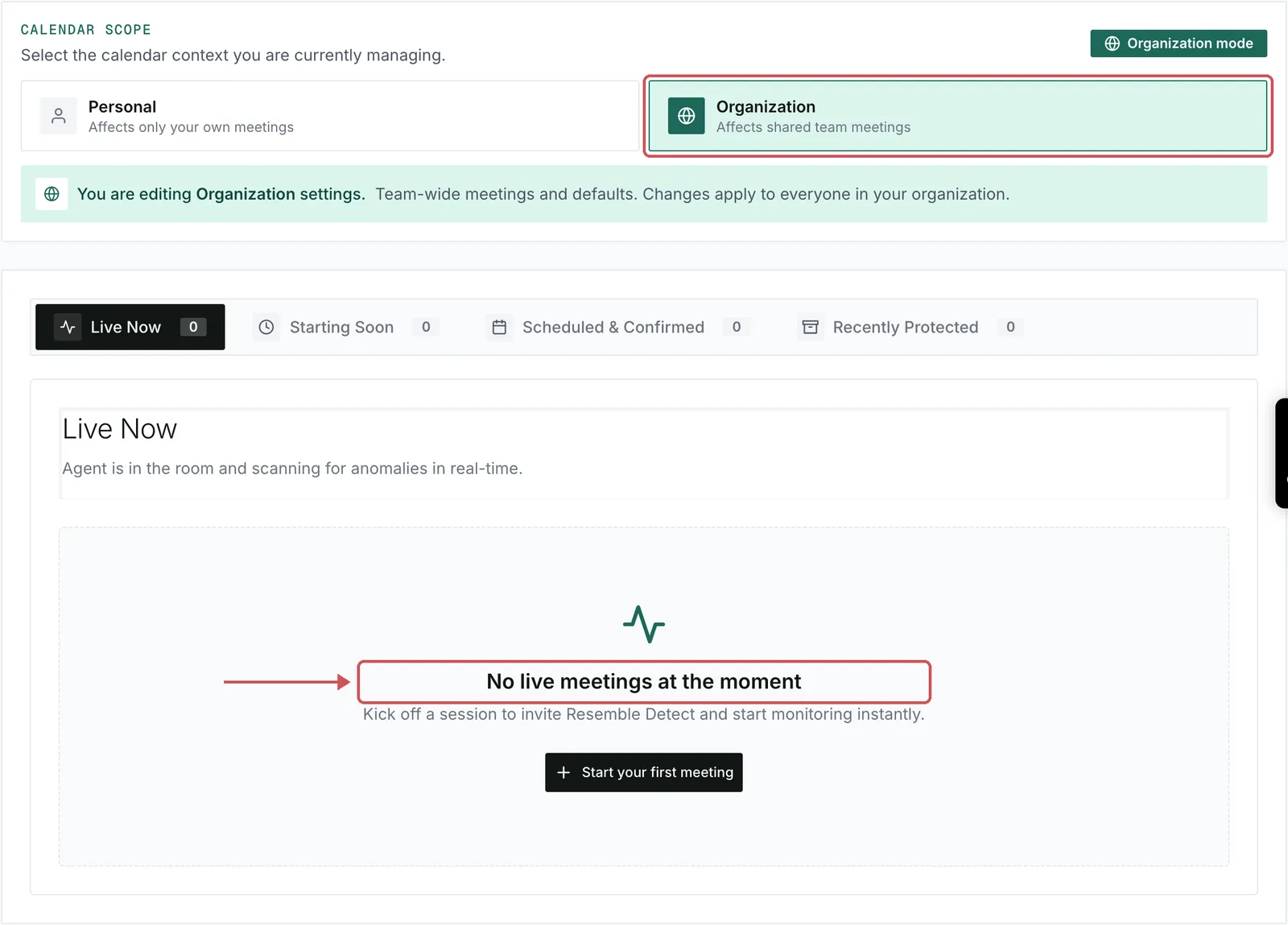
Calendar Scope is set to Organization. The meeting tabs stay empty until you choose people to protect.
Choose people to protect
Load the directory
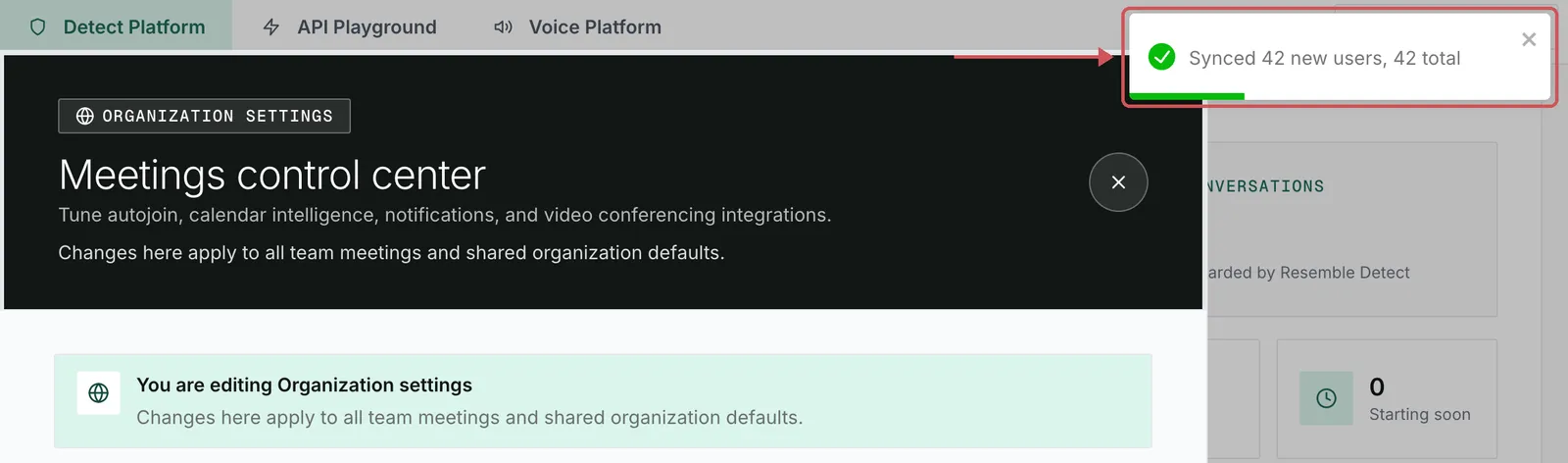
Click Edit Organization Settings. The first time you open it, Resemble loads everyone in your Microsoft 365 directory. A message shows how many people it found, for example Synced 42 new users, 42 total.
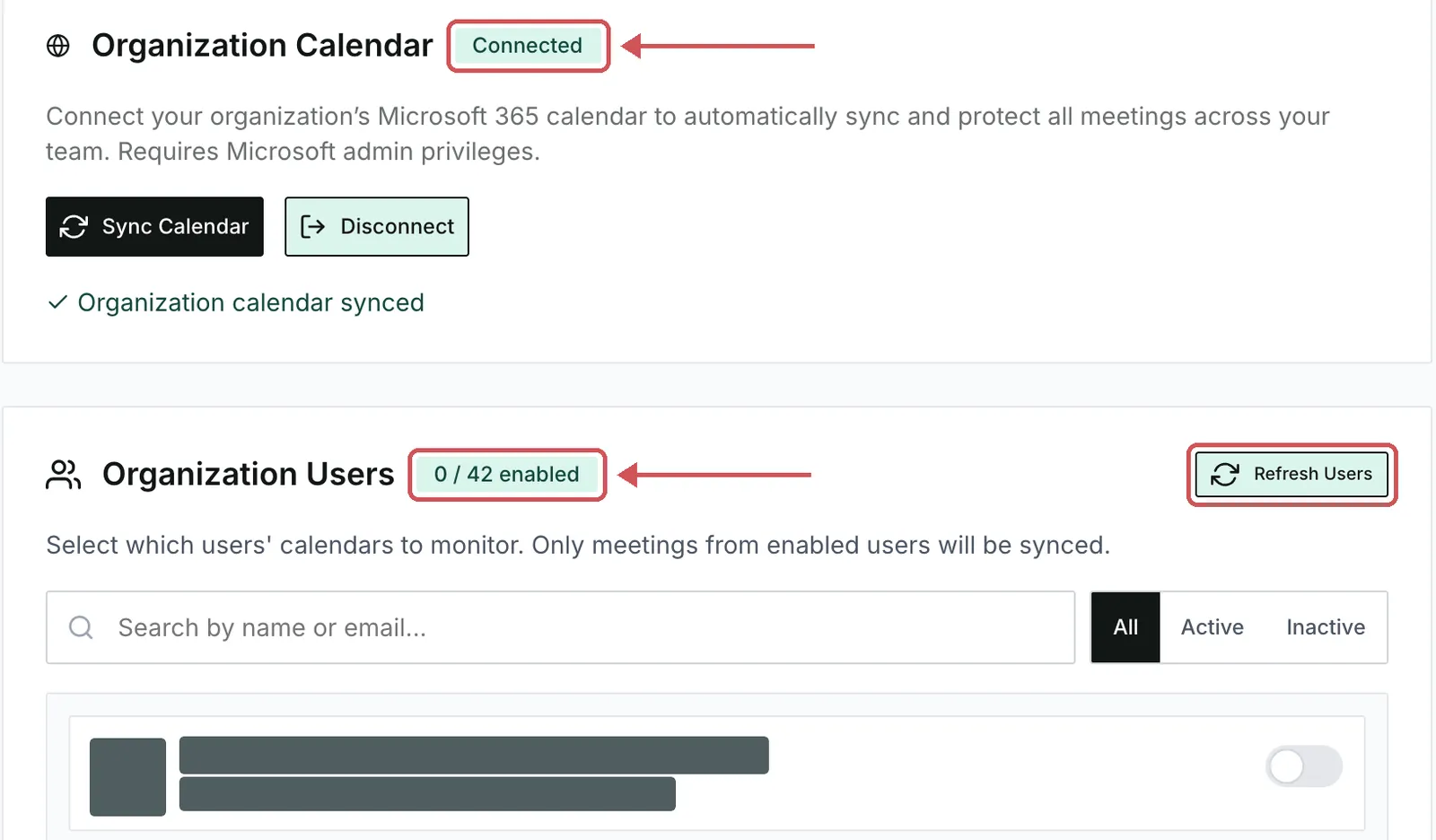
Scroll to Organization Calendar and confirm it shows Connected. Under Organization Users, everyone starts turned off. For a directory of 42 people, the count reads 0 / 42 enabled.
Select people
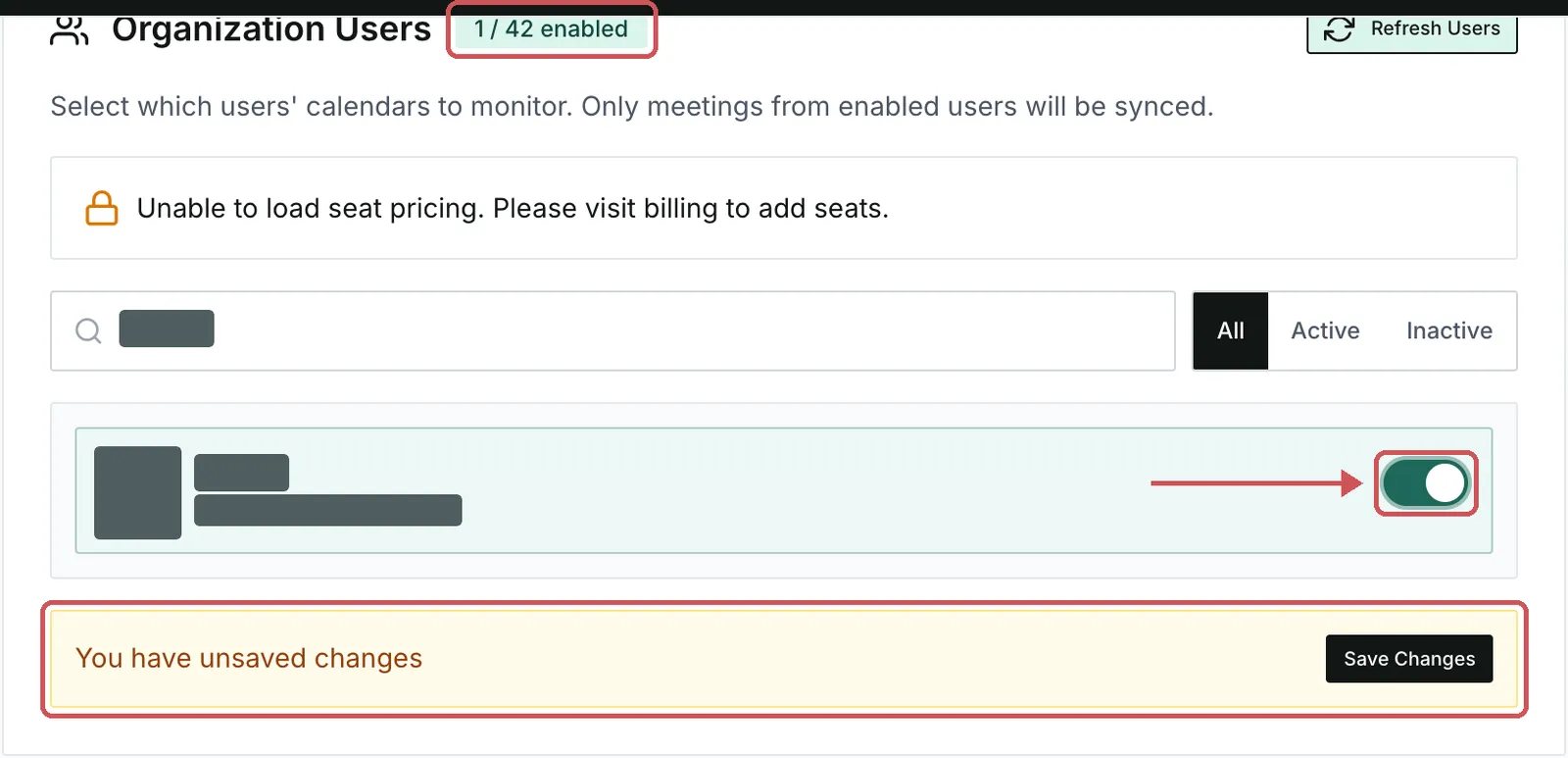
Use Search by name or email…, or filter the directory by All, Active, or Inactive. Turn on the switch for each person whose calendar you want to protect. The page shows You have unsaved changes.
Save and verify the first sync
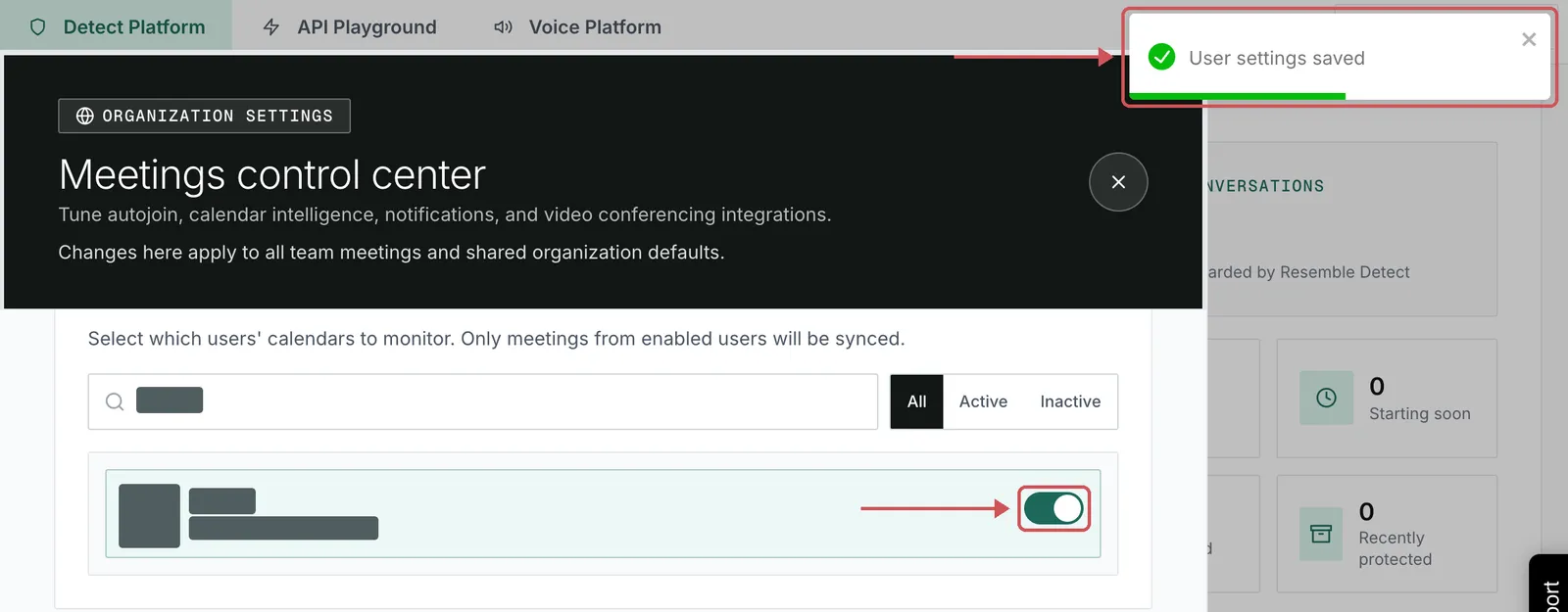
Click Save Changes. The enabled count updates and User settings saved appears. Resemble starts syncing the calendars you selected right away.
Close settings and return to Meetings. Upcoming calls that match your autojoin preference and meeting filter usually appear within a few seconds. See your first meetings on the dashboard to verify the sync.
Manage seats and directory changes
Each enabled person uses one team seat. Organization and personal calendars draw from the same pool. If all seats are in use, the switches for additional people are disabled. Use the option to add seats, or ask your billing admin.
- Add a new directory user. Click Refresh Users to load people added to Microsoft 365 since the last directory sync. The confirmation shows the number of new users and the updated total. Turn on the new person’s switch and click Save Changes.
- Stop protecting a calendar. Turn off the person’s switch and click Save Changes. Resemble removes their upcoming meetings and cancels the bots, except for meetings that another protected person is also invited to. Past meetings and their results stay available.
What Resemble reads
The Microsoft consent screen lists four permissions for Resemble Meetings.
- Read calendars in all mailboxes
- Read online meeting details
- Read all users’ full profiles
- Sign in and read user profile
After approval, Resemble uses the following data to protect the people you enable. It reads their calendar events and never edits calendars or meetings.