
Skip to navigation

Meetings Dashboard

Follow your organization's upcoming meetings, check whether the bot can join, and review participant verdicts.

Open Meetings and select Organization under Calendar Scope. Team admins see every protected organization meeting. Other team members see meetings they are invited to when they are enabled in Organization Users and signed in with their organization email.

See your first meetings

After you choose people to protect and save, close Organization settings. Within a few seconds, Protected Conversations shows the total and the dashboard breaks it down into live, starting soon, scheduled, and recently protected meetings.
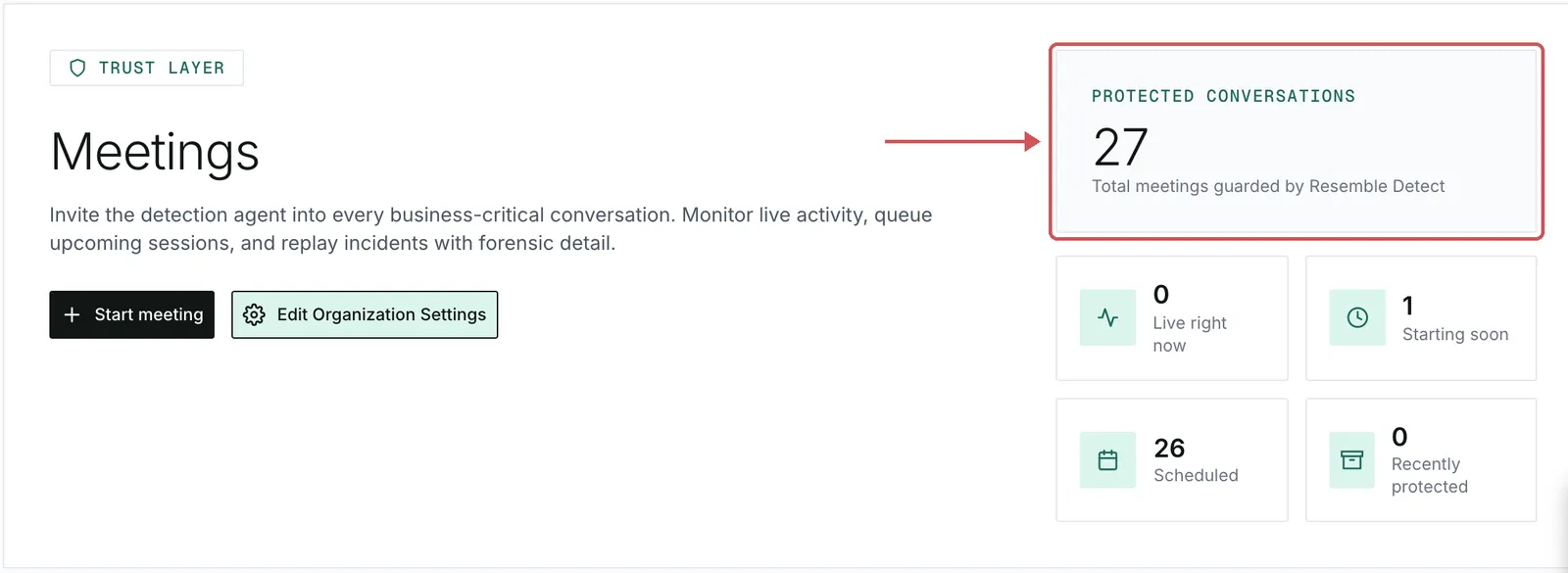
Protected Conversations shows 27 meetings after sync. One is starting soon and 26 are scheduled.
Meeting counts after the first organization calendar sync

Open Scheduled & Confirmed for meetings more than 12 hours away. Look for the Scheduled badge on each card.
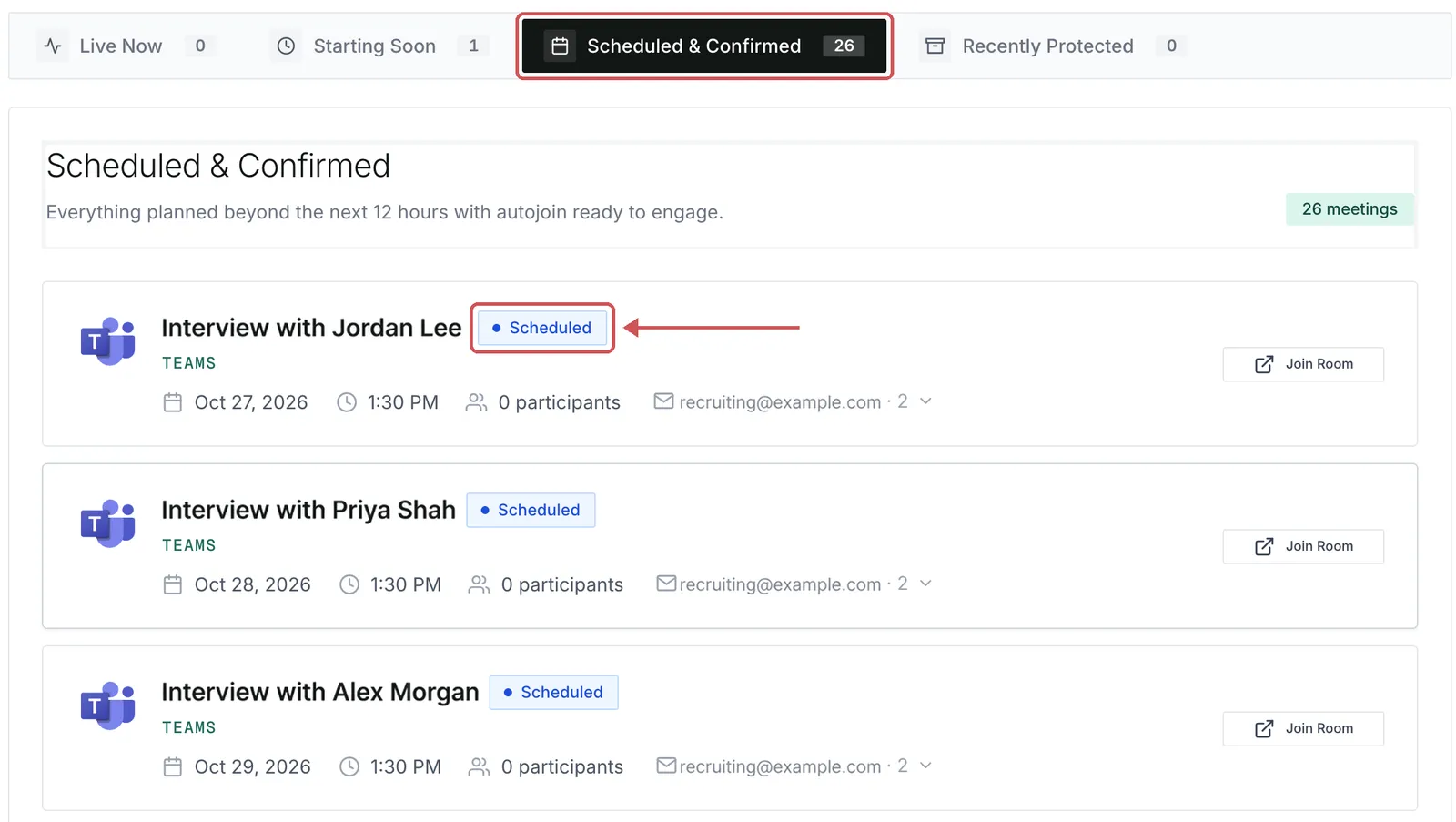
Scheduled & Confirmed is selected. The listed Teams meetings have a Scheduled badge beside each title.
Upcoming meetings in Scheduled & Confirmed

Open Starting Soon for meetings in the next 12 hours. Resemble books the bot when a meeting is less than an hour away. The bot joins at the start time.
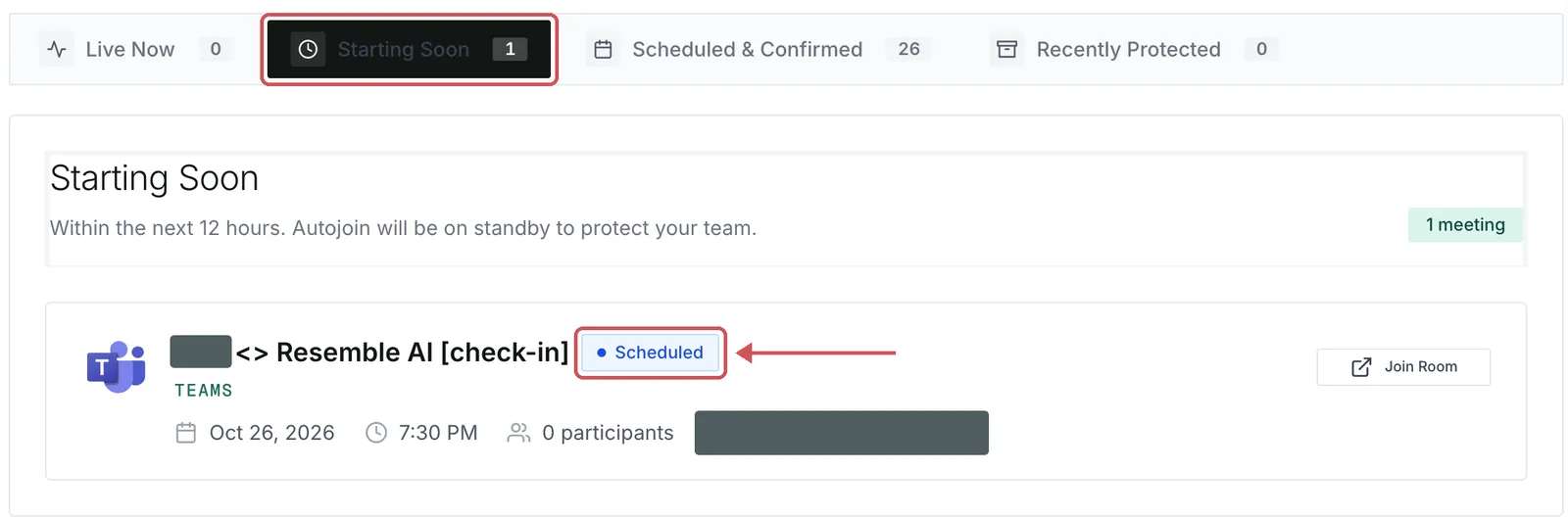
Starting Soon shows one Teams meeting with the Scheduled badge highlighted
Meetings starting in the next 12 hours

How meetings get a bot

StepWhat happens
Calendar syncEvery 20 minutes, Resemble checks protected calendars for events from now through the next 30 days. Click Sync Calendar under Organization Calendar to check now.
MatchingEvents with a supported meeting link appear if they pass the organization’s autojoin preferences and meeting filter.
Shared meetingsA Teams meeting on several protected calendars gets one card and one organization bot. Resemble uses the meeting link to match copies of the same Zoom or Google Meet event.
BookingWhen the meeting is less than an hour away, Resemble books the bot to join at the scheduled start. For a Teams meeting hosted by a protected person, Resemble first checks the lobby setting as the organizer.
Rescheduled eventsIf the meeting moves by more than five minutes, Resemble cancels the original booking and books a bot for the new time.
Other changesEach sync updates the meeting title, end time, and invitees.
Canceled or deleted eventsResemble cancels the bot and removes the meeting from the list.

Teams lobby

The bot joins Teams meetings as a guest. When a protected person is the organizer, Resemble checks who can bypass the lobby just before booking. The card then shows one of these messages.

Message on the meeting cardWhat happens
Bot will bypass the lobby and join automaticallyEveryone can bypass the lobby. The bot enters the call automatically.
Bot may land in the waiting room — a participant will need to admit itAsk someone in the call to admit the bot before the waiting room timeout.
Bot cannot join — lobby is restricted to org members only. Ask the organizer to change the lobby setting to allow guestsOnly organization members can bypass the lobby. Resemble skips the booking.
Bot cannot join — only the organizer can bypass the lobby. Ask the organizer to change the lobby setting to allow guestsOnly the organizer can bypass the lobby. Resemble skips the booking.

If the organizer is outside the protected group, Resemble sends the bot without a lobby check. Someone in the call may need to admit it.

Start a meeting now

You can send a bot to a call that is already starting or underway, even if it is missing from the protected calendars.

  1. Open Meetings and click Start meeting.
  2. In Start a protected meeting, paste the link in Meeting URL. The dialog accepts Zoom, Google Meet, Microsoft Teams, and Webex links.
  3. Click Start meeting. The bot tries to join immediately, and the call appears in Live Now.
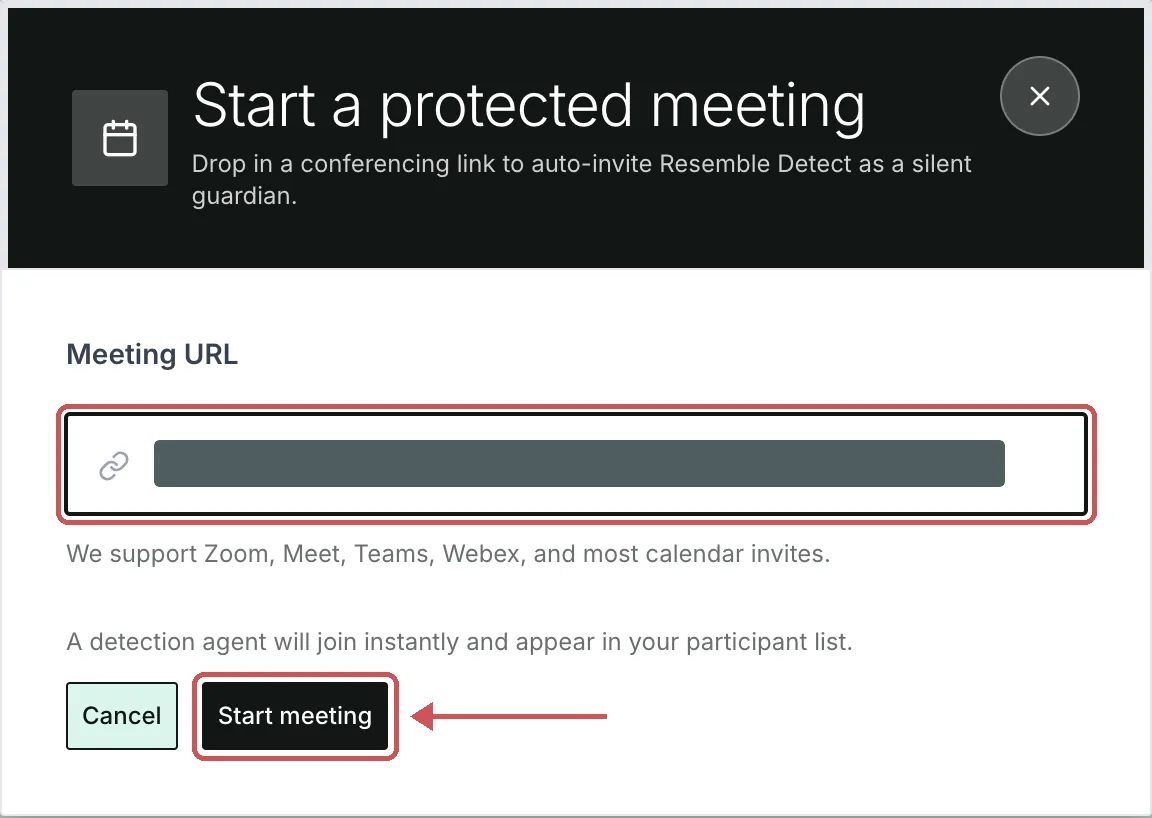
The Start a protected meeting dialog with the Meeting URL field and Start meeting button
Start a protected meeting with its meeting link

Find a meeting

TabWhat you’ll find
Live NowMeetings in progress. Open a card to follow the bot and participant verdicts.
Starting SoonMeetings starting in the next 12 hours.
Scheduled & ConfirmedMeetings more than 12 hours away.
Recently ProtectedMeetings that have ended, with their final verdicts.

Each card shows the meeting title, platform, time, participant count, meeting status, and bot status. Open Invitees to see the organizer and invitee list.
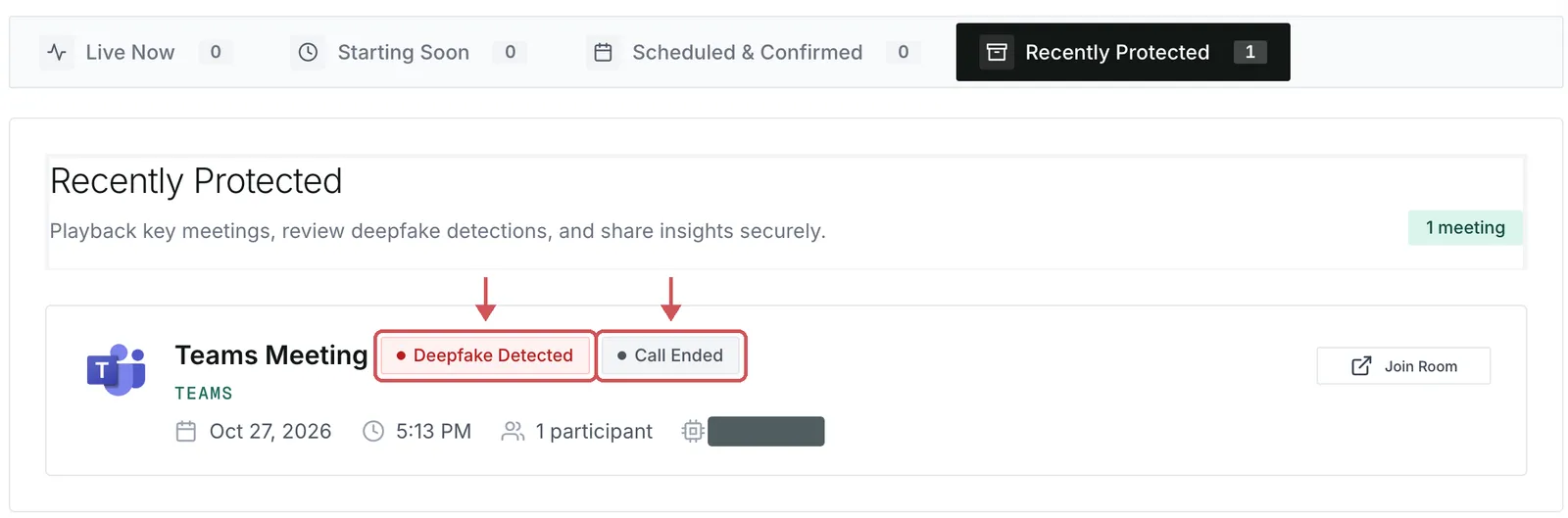
A Teams meeting in Recently Protected shows Deepfake Detected for the meeting and Call Ended for the bot
Meeting and bot status on a Recently Protected card

Meeting status

BadgeMeaning
ScheduledThe meeting is upcoming. The bot is scheduled to join at the start time.
LiveThe meeting is in progress.
VerifiedThe call ended and the bot flagged no participants.
Deepfake DetectedThe bot flagged at least one participant. Open the card to review their results.
No resultParticipants joined, but the bot received no audio or video to analyze.
No one joinedThe session ended without any participant media.
TrackingResemble is waiting for schedule or participant updates.

Bot status

BadgeMeaning
JoiningThe bot is connecting to the call.
Waiting RoomThe bot is waiting to be admitted. It leaves when the waiting room timeout expires.
RecordingThe bot is in the call and checking participants.
Call EndedThe call ended and the bot session is complete.
Kicked from CallSomeone removed the bot from the call.
Kicked from Waiting RoomThe bot was removed from the lobby before it could enter the call.
Recording BlockedA compliance policy or filter prevented recording.
Fatal: Bot ErrorThe bot encountered an unexpected error.
Fatal: Meeting Not FoundThe bot could not find the meeting.
Fatal: Invalid LinkThe meeting link is invalid.
Fatal: Meeting EndedThe meeting had already ended when the bot tried to join.

Live detection

The bot checks each participant’s voice and video for AI-generated content during the call. In Live Now, the meeting shows Live and the bot shows Recording while it is checking participants.
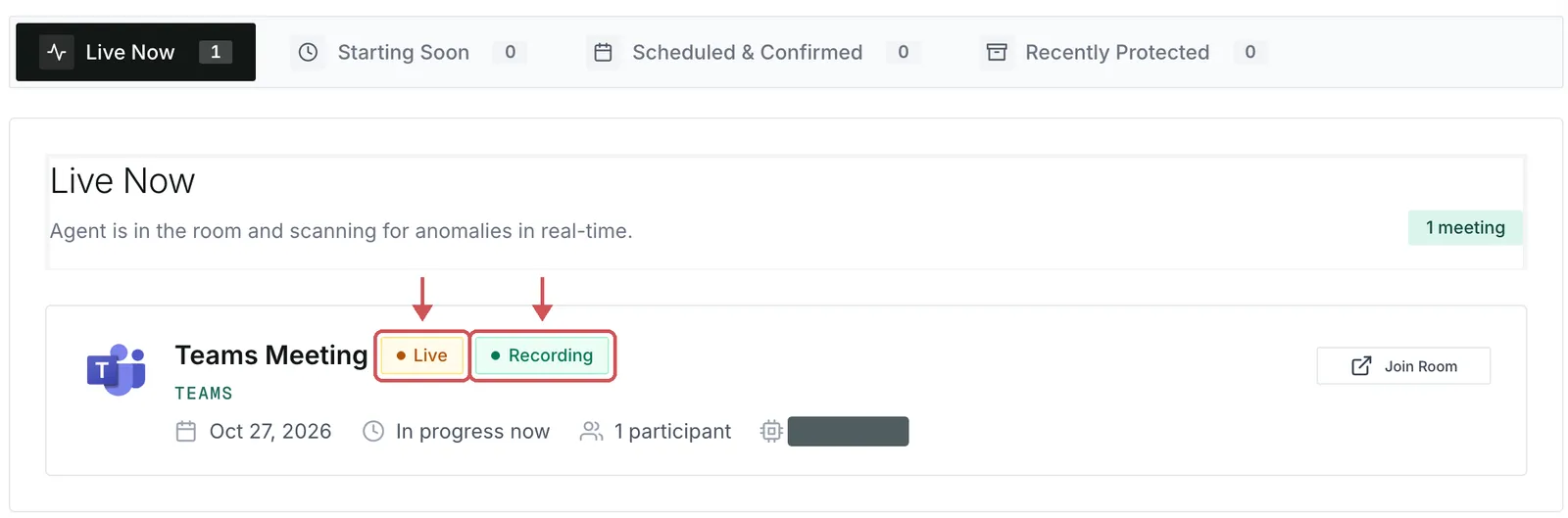
A Teams meeting in Live Now shows one participant, with Live and Recording highlighted beside the meeting title
A live meeting with the bot recording

Open the card to watch the participant verdicts update. Each verdict shows in progress while the bot gathers enough audio and video to make a determination.
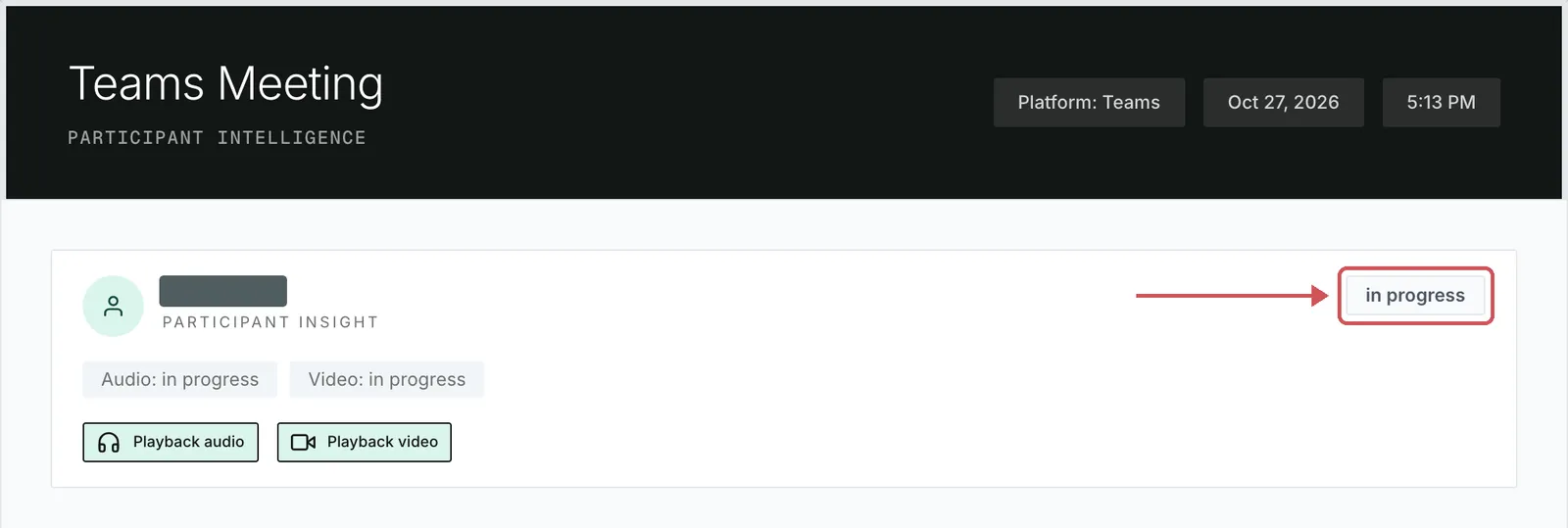
A participant in a live Teams meeting has an in progress verdict. Audio and Video both show in progress.
Participant results during a live meeting

When the bot flags a participant, it posts the following warning in the meeting chat, using the participant’s name.

DEEPFAKE DETECTED: name is using AI-generated content

A team admin can turn on Suppress chat notifications to stop the posts while detection continues. At the end of the call, Resemble sets the final verdict and sends one report to the organization’s Team Notifications recipients if anyone was flagged.

Review a completed call

When the bot reaches a final status, the meeting moves to Recently Protected. Read the bot status and meeting status together to see what happened.

What happenedBot statusMeeting status
The call ran and the bot flagged someoneCall EndedDeepfake Detected
The call ran and the bot flagged no oneCall EndedVerified
The call ran without any participant audio or video capturedCall EndedNo one joined
Someone removed the bot during the callKicked from CallDeepfake Detected, Verified, or No one joined, depending on what the bot captured before removal
The bot was removed from the waiting room before it could enterKicked from Waiting RoomNo one joined
A compliance policy or filter blocked recordingRecording BlockedNo one joined
The bot could not joinFatal: Bot Error, Fatal: Meeting Not Found, Fatal: Invalid Link, or Fatal: Meeting EndedNo one joined

Meeting details

Click a meeting card to see each participant’s verdict (real, fake, in progress, or no result) alongside their separate Audio and Video results. Use Playback audio or Playback video to review the available clips.
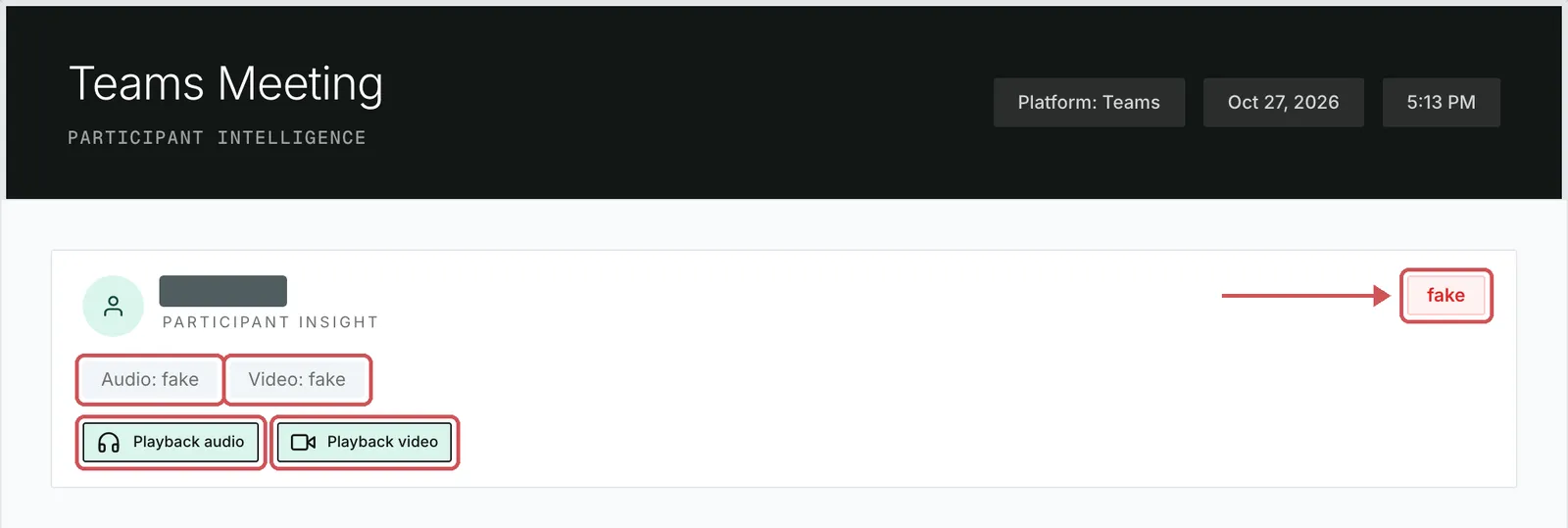
A flagged participant has a fake verdict. Audio and Video each show fake, with Playback audio and Playback video buttons below.
Participant verdicts and playback in meeting details