
Connect Your Calendar
Each person connects one Google or Microsoft calendar per team. Once your calendar is connected, the bot joins the meetings that match your autojoin option and meeting filter.
Connect from the Meetings page
Open Meetings
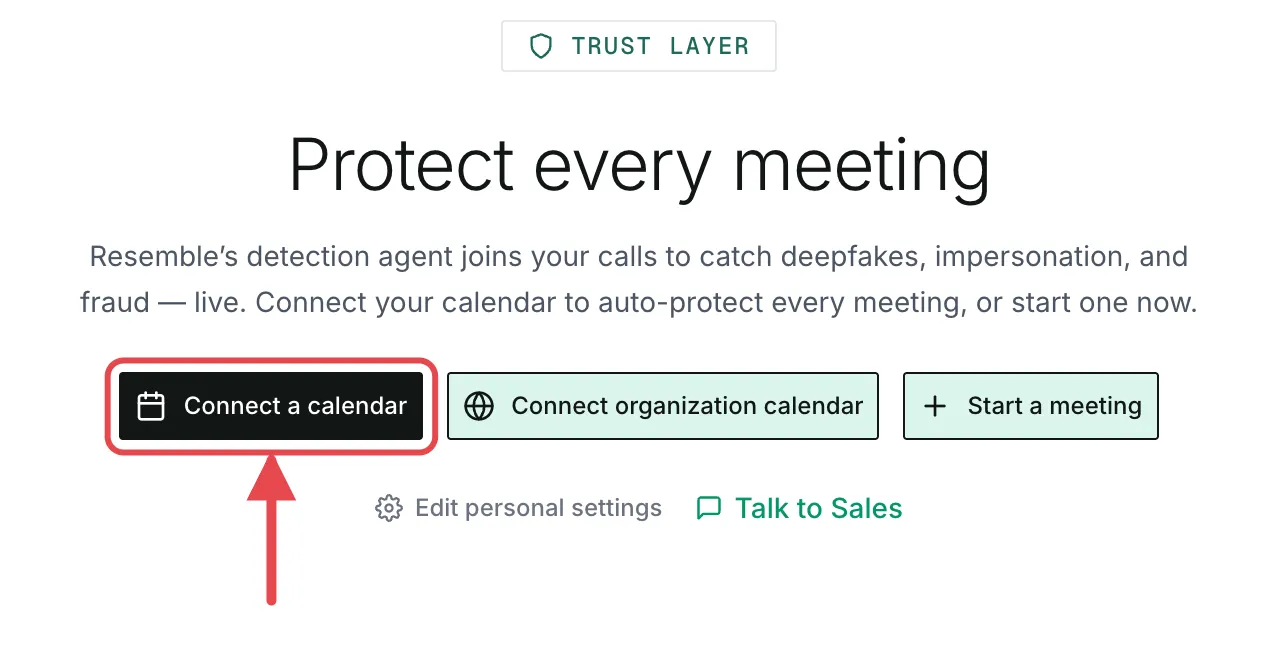
In the Resemble app, open Meetings from the sidebar. New users see the Protect every meeting screen. Click Connect a calendar, and the Start protecting your meetings dialog opens.
- Your meetings, with a Connect calendar banner: you already have meetings, for example one you started with Start meeting. Click Connect calendar on the banner instead.
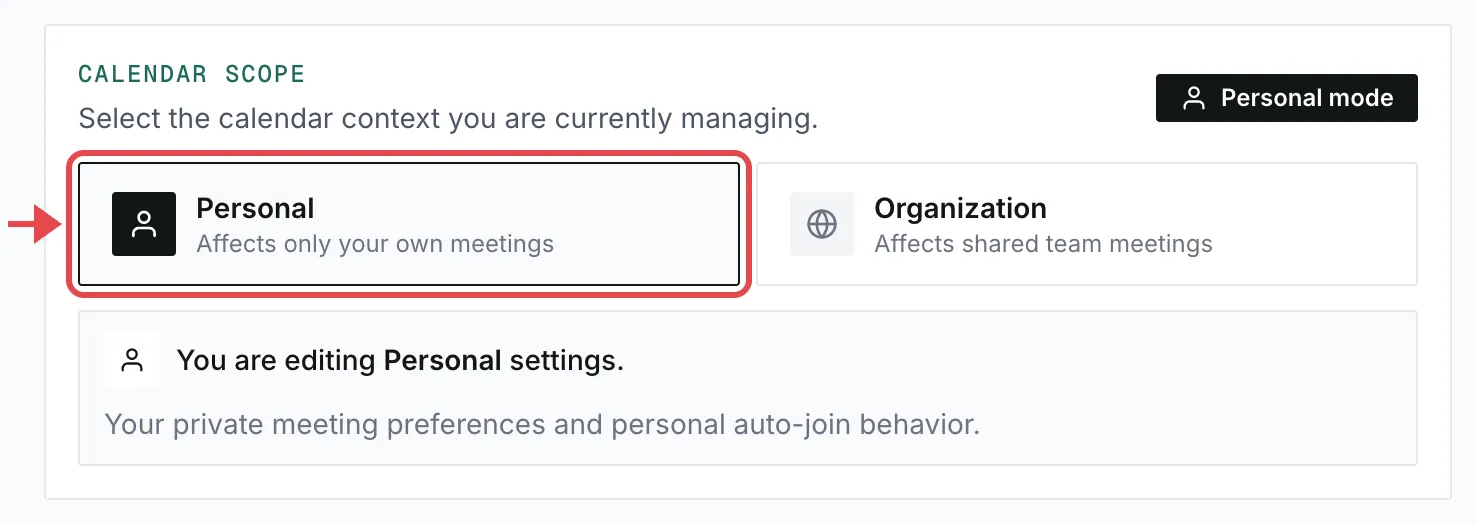
- Organization mode, with no connect options: your team has an organization calendar. Pick Personal under Calendar Scope, then connect from settings.
- An upgrade page: your plan doesn’t include Meetings.
Choose when the bot joins
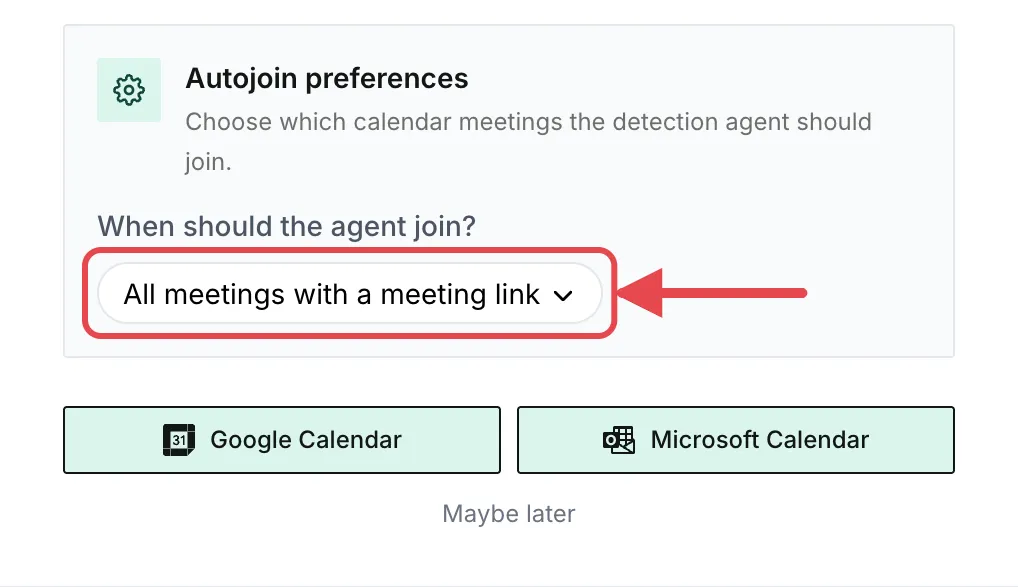
Under When should the agent join?, pick an autojoin option. The default is All meetings with a meeting link. You can change it later.
Sign in and approve access
Sign in to that calendar account and approve the access it asks for. The account’s email, not your Resemble login, decides which meetings count as hosted, internal, or external for your autojoin option.
If Microsoft or Google says your admin must approve the app, ask your IT admin to allow Resemble, then connect again.
Connect from settings
This path uses your saved autojoin option instead of asking.
- Click Edit Personal Settings at the top of the Meetings page. On the Protect every meeting screen, use the Edit personal settings link instead. If the button reads Edit Organization Settings, pick Personal under Calendar Scope first.
- In Calendar Integrations, click Connect Google Calendar or Connect Microsoft Outlook and sign in.
You land back on Meetings, and your upcoming meetings start syncing.