Meetings Control Center
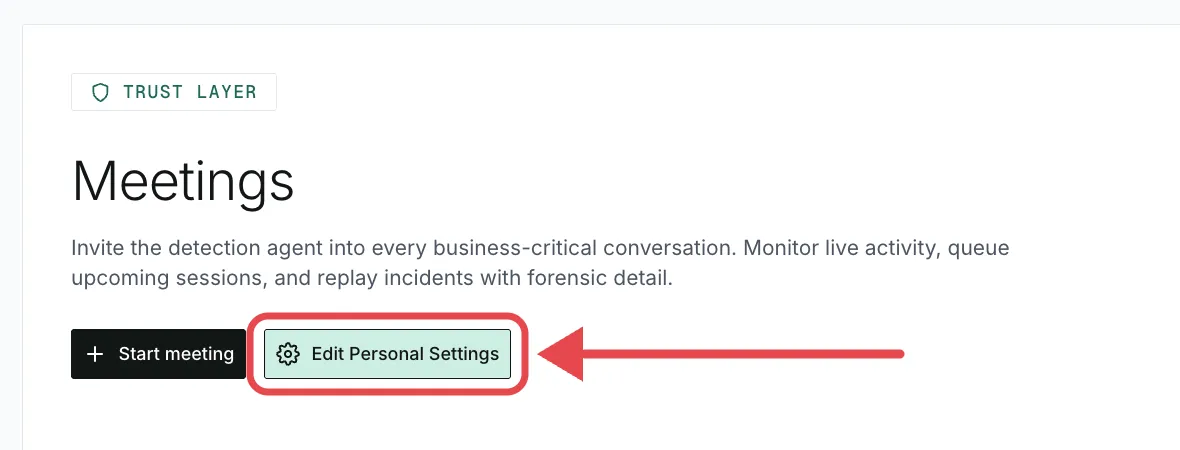
The control center holds your personal settings. To open it, click Edit Personal Settings at the top of the Meetings page.
- On the Protect every meeting screen, use the Edit personal settings link instead.
- If the button reads Edit Organization Settings, pick Personal under Calendar Scope first.
The sections below appear in this order, and each applies only to your own meetings.
Autojoin Preferences
Pick which calendar meetings the bot joins under When should the detection agent join your meetings?
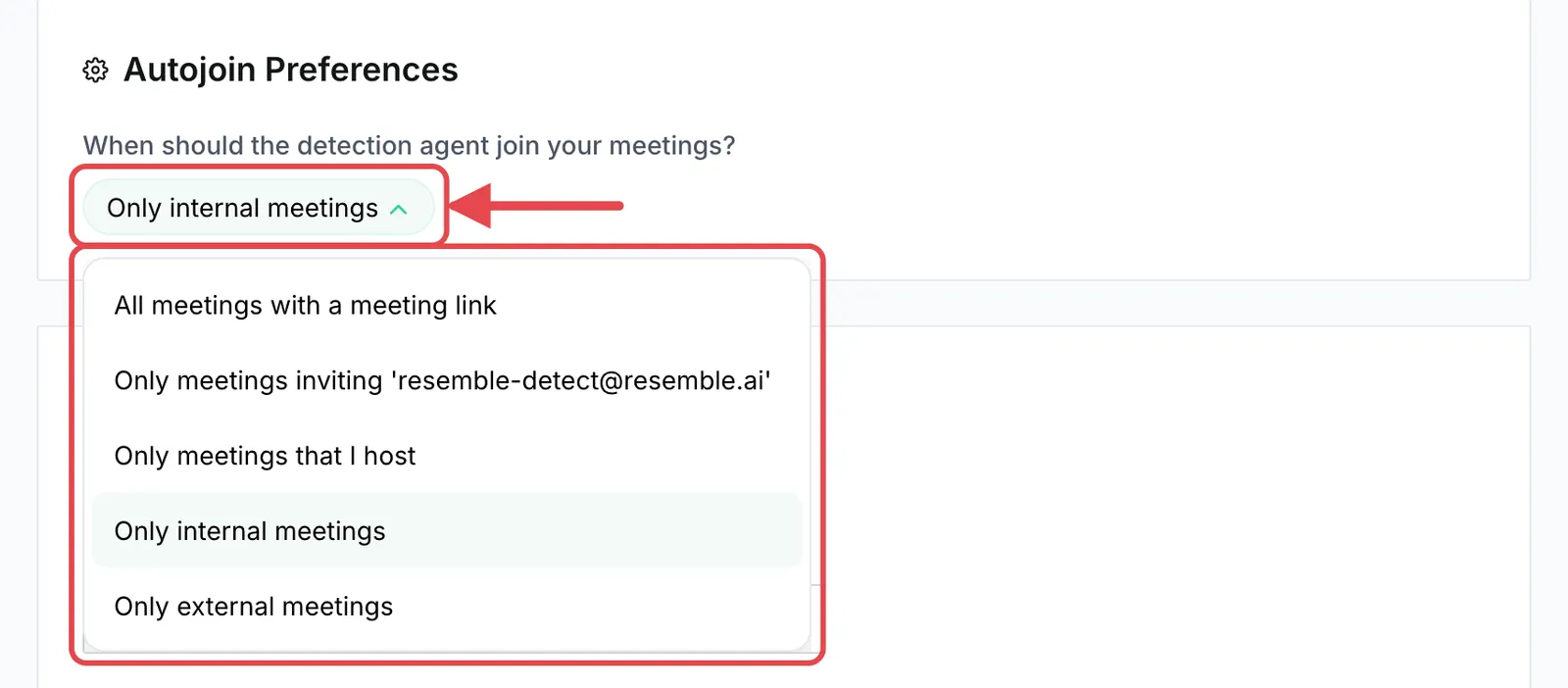
- Hosted, internal, and external follow your connected calendar’s email, not your Resemble login.
- Changing the option re-checks your upcoming meetings, and you see Applying to your upcoming meetings… until it’s done. Meetings that now match get the bot. Meetings that no longer match lose it.
Invite resemble-detect@resemble.ai to an event on your connected calendar before it starts. The bot joins that meeting regardless of your autojoin option, as long as the event has a meeting link and, if the Meeting Filter is on, its title matches one of your keywords.
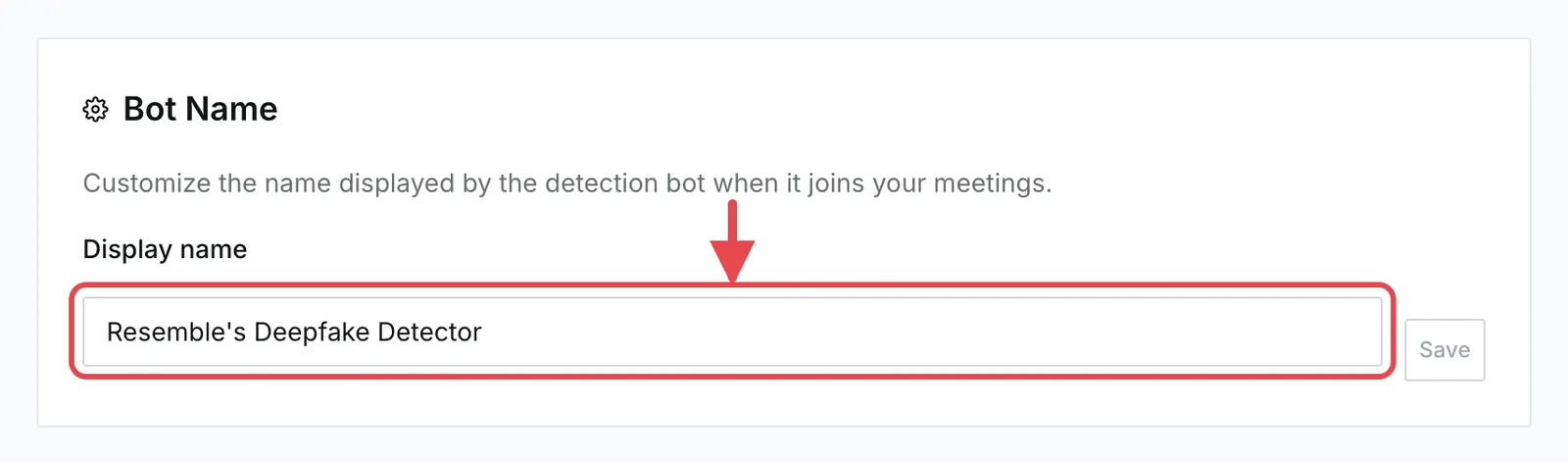
Bot Name
Set the name the bot shows when it joins your meetings. Edit Display name (up to 100 characters, and it can’t be blank), then click Save. The default is Resemble’s Deepfake Detector.
Bot Leave Behaviour
Choose when the bot leaves a meeting on its own. Enter both values in seconds, then click Save.
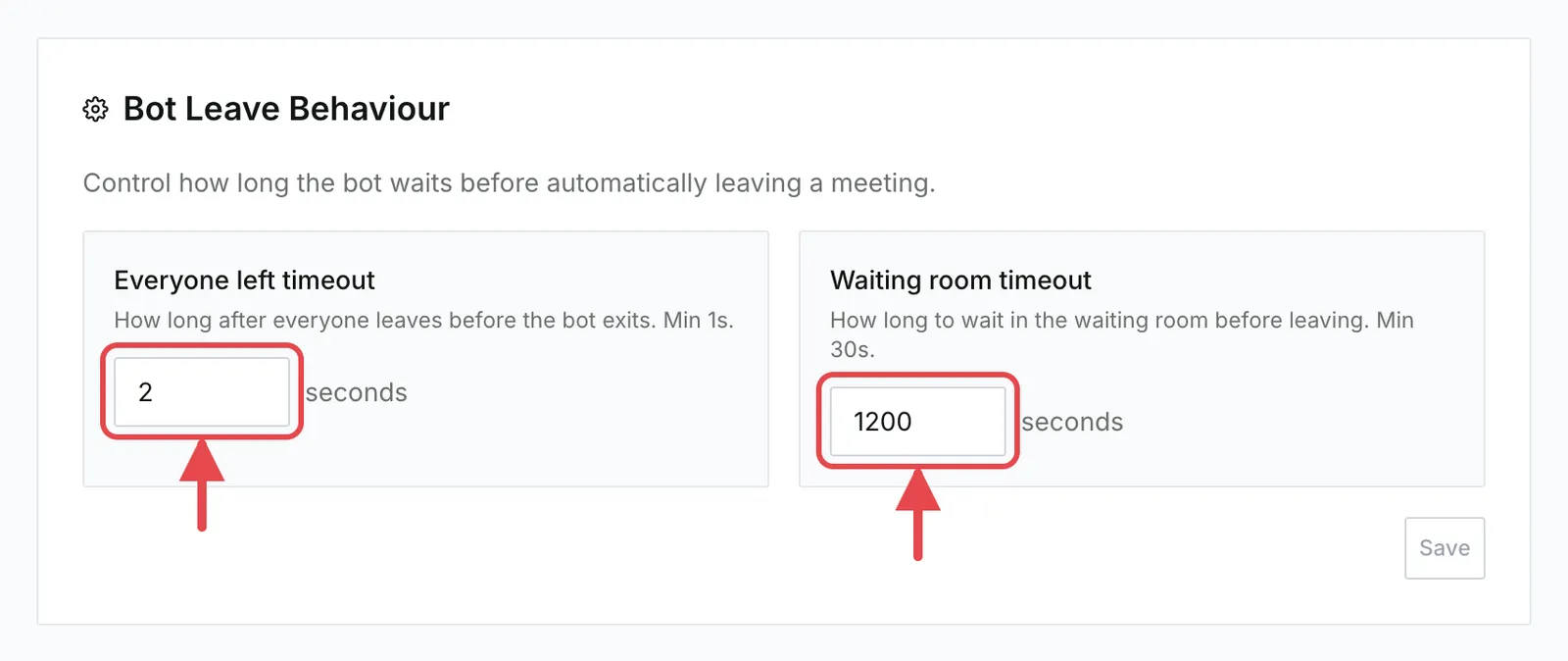
The bot also leaves if no one else joins within 10 minutes of the bot joining.
Calendar Integrations
This section shows Connected or Not connected. Use it to connect, switch, or disconnect your calendar.
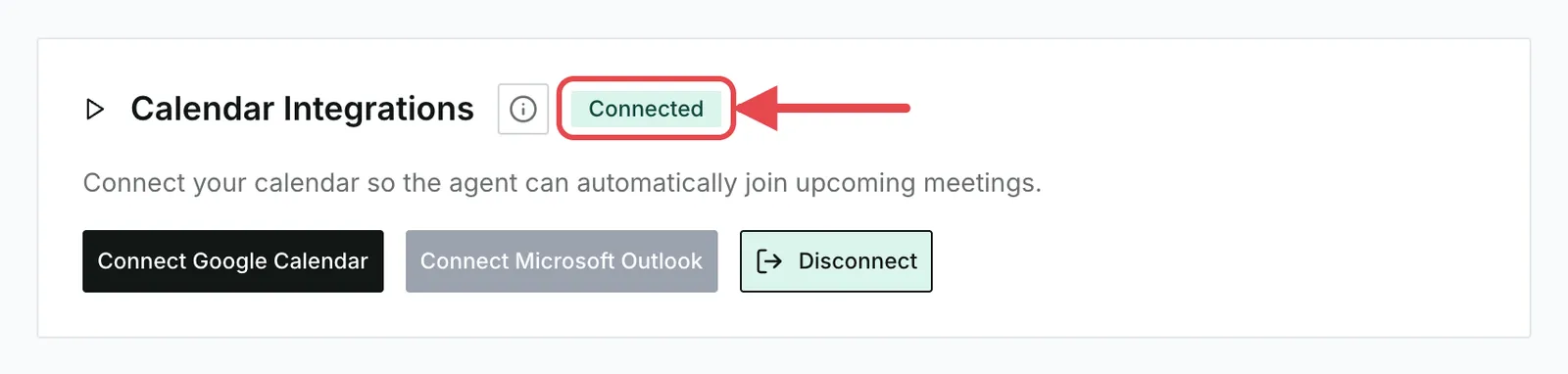
- Connect: click Connect Google Calendar or Connect Microsoft Outlook and sign in, as in Connect Your Calendar. This uses your saved autojoin option.
- Switch calendars: click the other provider’s button, confirm Yes, switch, and sign in to the new calendar.
- Disconnect: click Disconnect.
When you switch or disconnect, your current calendar’s upcoming meetings and scheduled bots are removed. Past meetings and their results are kept.
Meeting Filter
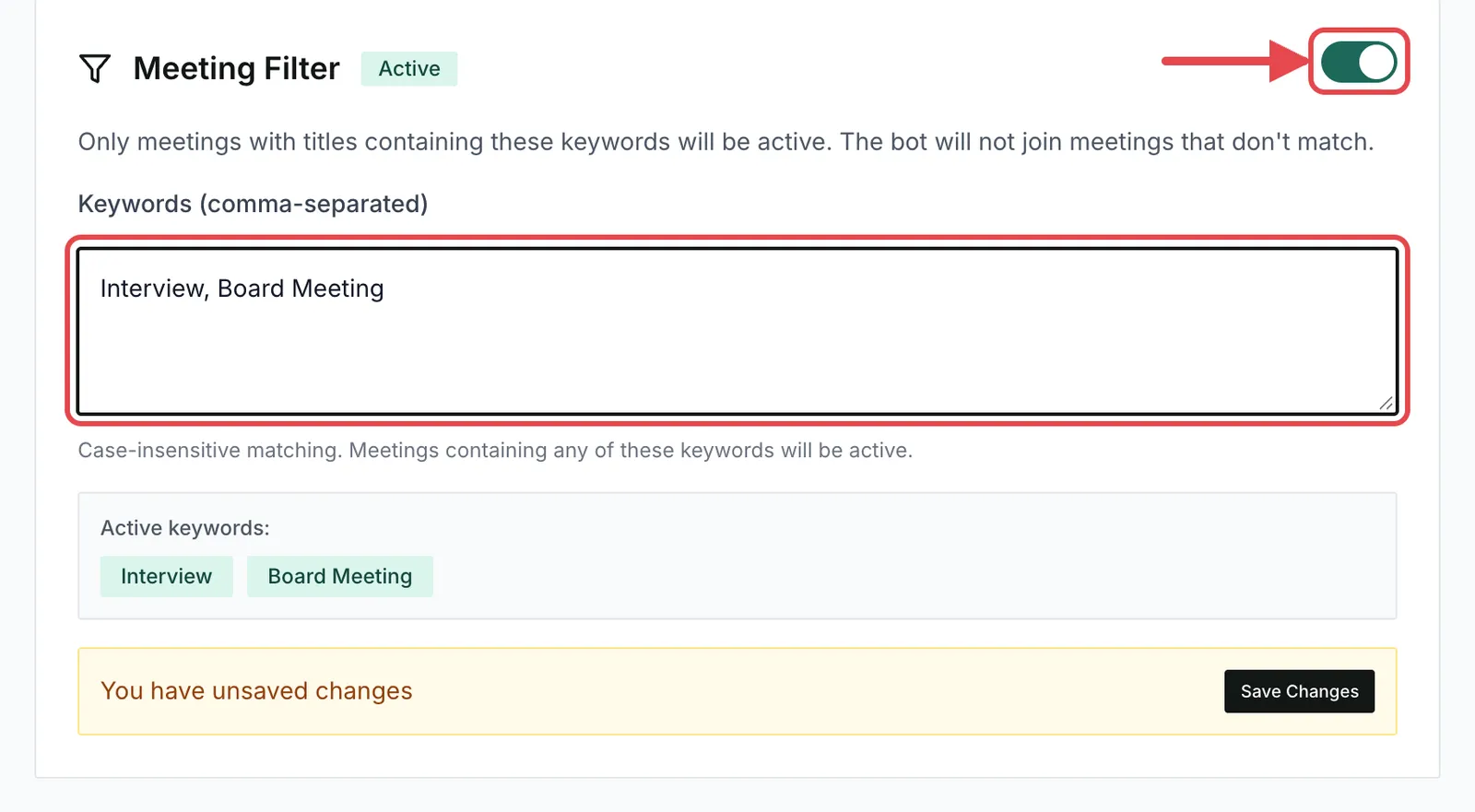
Limit the bot to calendar meetings whose titles contain your keywords. Bots you add with Start meeting aren’t filtered.
- In Meeting Filter, turn the switch on. The badge changes from Disabled to Active.
- Enter keywords in Keywords (comma-separated), for example
Interview, Board Meeting. - Click Save Changes, which appears once you change something.
How matching works
- Separate keywords with commas.
- Matching ignores case and finds a keyword anywhere in the title, so
viewmatches “Interview”. A title with any one keyword matches. - With the switch on and no keywords, every meeting matches.
- A meeting needs to pass both the filter and your autojoin option.
- Saving re-checks your upcoming calendar meetings right away. Meetings that now match get the bot. Meetings that no longer match lose it.
Team Notifications
Send an alert email to the addresses you list when a call ends with a flagged participant. This needs a plan that includes security notifications. Otherwise the field is disabled and you see Security notifications are not available on your current plan.
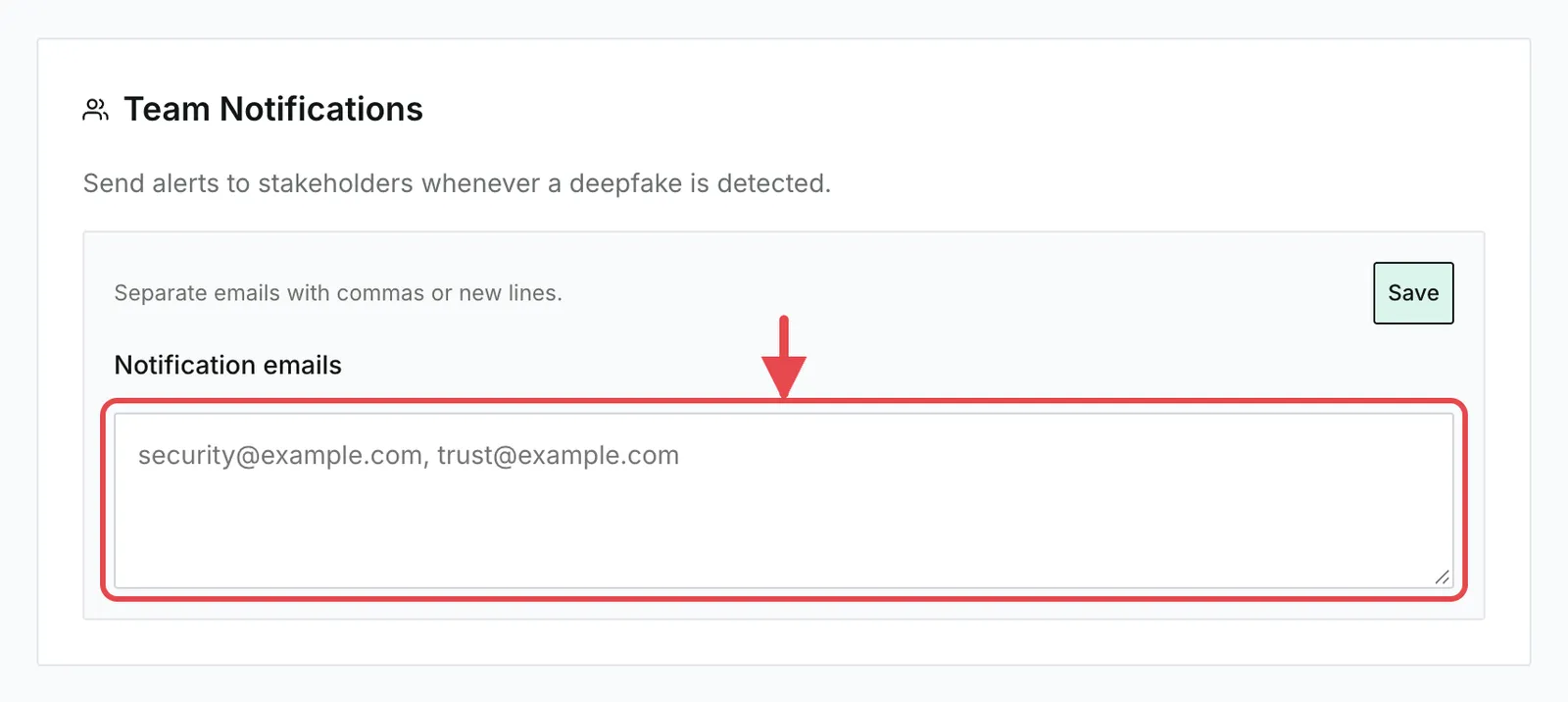
- In Team Notifications, enter up to 10 addresses in Notification emails, separated by commas or new lines.
- Click Save.
- Alerts are sent once per meeting, after the call ends. They come from Meeting Deepfake Detection Alert at security-alerts@resemble.ai.
- If any address is invalid or there are more than 10, nothing is saved and you see Failed to update notification emails.
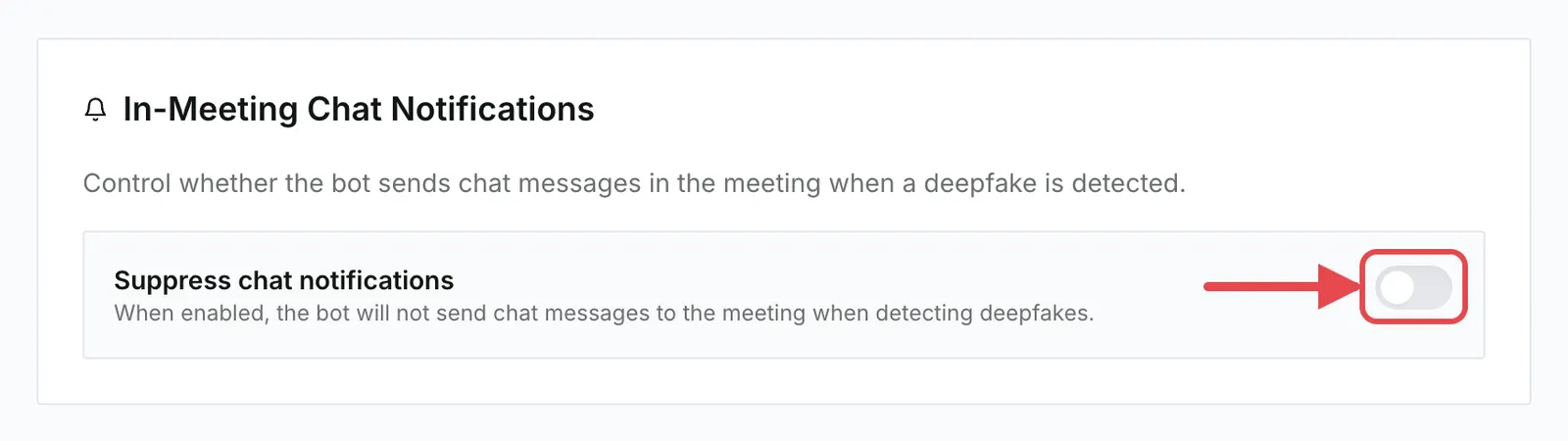
In-Meeting Chat Notifications
When the bot flags someone, it posts this message in the meeting chat:
🚨 DEEPFAKE DETECTED:
<name>is using AI-generated content
Turn on Suppress chat notifications to stop these posts. Detection keeps running either way. The setting is off by default, so posts are sent.